

Poisoned chatbot conversations are appearing in Google search results. Here’s what to do instead of trusting them.
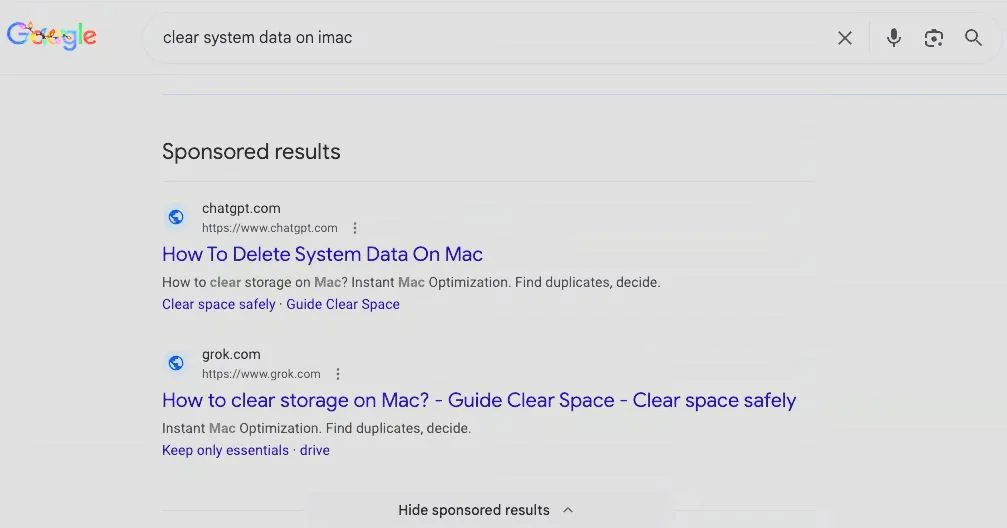
Something new is creeping into Google results: public, shareable chatbot conversations that look like legitimate help pages—but may contain instructions designed to compromise your computer.
Most major AI chatbots now include a sharing feature that lets someone publish a conversation as a public webpage. Because those pages live on real, well-known domains and can be indexed by search engines, they may appear alongside “normal” sites in search results. That’s the core problem: the hosting platform may be reputable, but the content is still user-generated.
Attackers can take advantage of this by creating a conversation that reads like a helpful troubleshooting thread, then slipping in malicious steps. The most dangerous versions don’t look like “download this sketchy file.” They look like routine guidance, especially when they’re framed as a quick fix.
Why this works so well
When people search for tech help, they’re often looking for a fast answer. A chatbot transcript can feel extra credible because it’s formatted like a guided walkthrough, and the URL may include a recognizable AI brand. That combination lowers skepticism.
It’s also common for these transcripts to include step-by-step instructions—exactly the format people want when they’re frustrated. Unfortunately, that’s also the perfect format for social engineering.
The practical rule
Treat chatbot conversations you find through Google the same way you’d treat a random forum post: potentially useful for ideas, but not authoritative instructions.
A shared AI chat is not documentation. It’s not vetted. And it may be written (or edited) by someone with bad intent.
The biggest risk on a Mac: Terminal copy/paste
The highest-risk moment is when a conversation tells you to copy and paste commands into Terminal.
If you don’t understand what a command does, don’t run it. A single pasted line can download and execute software, modify security settings, exfiltrate browser data, or establish persistence—sometimes without any obvious “installer” screen.
If a chatbot transcript instructs you to paste something “verbatim,” treat that as a bright red flag.
Red flags to watch for
Be extra cautious if the conversation:
Mentions a “one-line fix” that involves Terminal, especially when it includes downloading something, running a script, or chaining multiple commands together.
Uses odd formatting or “encoded-looking” blocks of text (long strings of characters you can’t interpret) and tells you to run them as-is.
Asks you to disable macOS protections or bypass warnings (“ignore that prompt,” “allow it anyway,” “turn off Gatekeeper,” etc.).
Feels overly confident while providing no context, no explanation, and no safer alternatives.
Safer ways to use AI for troubleshooting
If you like using AI to solve problems (totally reasonable), you can reduce risk by changing how you use it.
Start a fresh conversation in your own chat session rather than relying on a shared transcript published by someone else. Then ask for solutions that prioritize built-in macOS tools and settings first (System Settings, Disk Utility, Storage Management) before anything involving Terminal.
If Terminal is truly necessary, ask the AI to explain, in plain English, what each command does and what would change on your Mac. If it can’t explain it clearly, that’s a sign you shouldn’t run it.
Finally, cross-check anything “command heavy
” with a reliable source—official documentation, reputable vendor knowledge bases, or well-known security publications—before you execute it.
If you already followed the instructions from a shared chat
If you already ran something from a chatbot transcript you found in search results, the next move is to assume it might have done more than you intended.
Disconnect from the internet, review what was executed, and run a reputable security scan. If the command involved credentials, brows
er data, or “fixing” access permissions, it’s also sensible to reset passwords from a different, known-clean device.
Bottom line: if you’re pulling troubleshooting steps from search results, assume they’re unvetted unless they come from an official or clearly reputable source. When a fix asks you to copy/paste commands or “run this,” pause and verify before you act.
(Featured image by iStock.com/tadamichi)
________________________________________________________
About The Mac Guys: We support small businesses that run on Macs, iPhones/iPads, and Apple services. Our focus is practical reliability: setup, troubleshooting, maintenance, security basics, and workflow improvements.
Need help? Contact The MacGuys+ at 763-331-6227