

Why Your Mac Sometimes Reopens Everything (and Sometimes Doesn’t)
Have you noticed that after a restart—or even just quitting and reopening an app—your Mac sometimes restores your windows and documents exactly where you left them… but other times you get a clean slate?
That inconsistency usually isn’t random. It’s driven by a macOS feature called Resume, introduced with OS X 10.7 Lion (2011). Resume was Apple’s attempt to make Mac apps behave a bit more like iPhone and iPad apps: when you come back, you should be able to pick up right where you left off.
In practice, many people found early versions of Resume confusing. Apps would reopen old documents you didn’t intend to continue, windows could reappear on the “wrong” display after a monitor change, and relaunching could feel slower when large documents had to reload. Apple’s compromise was to keep Resume—but make its behavior more optional and more controlled by settings.
Today, the tricky part is that Resume is controlled in two different places, depending on what you’re doing:
- Restarting / shutting down / logging out (a decision you make at that moment)
- Quitting and relaunching an individual app (a persistent system setting)
Once you know which lever you’re pulling, the behavior starts to make sense.
1) The “Reopen windows when logging back in” checkbox (Restart, Shut Down, Log Out)
When you restart, shut down, or log out, macOS shows a confirmation dialog with a checkbox labeled:
“Reopen windows when logging back in.” (Apple Support)
If that checkbox is checked, macOS will try to restore your running apps and their windows after you log back in. If it’s unchecked, you’ll start fresh.
Two details matter here:
- macOS remembers the last state of that checkbox, so whatever you chose last time is likely what you’ll see next time. (Apple Support)
- This checkbox affects the experience when the login session restarts. It doesn’t necessarily control what happens when you simply quit and reopen the same app later that day—that’s the next setting.
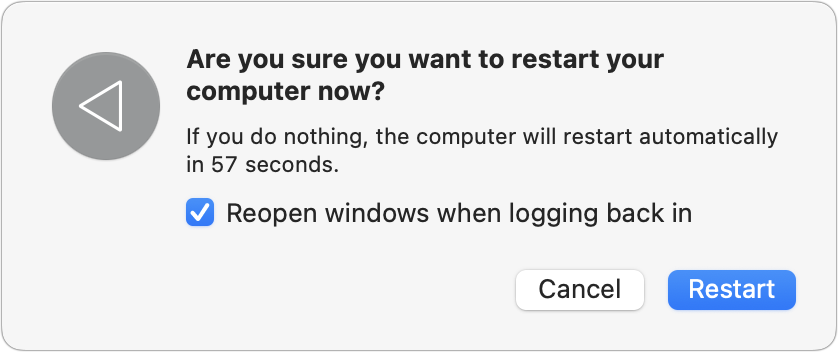
If you love returning to the exact same workspace after updates or restarts, leave it on. If you prefer reboots to mean “clean slate,” turn it off.
2) The setting that controls “Resume” when you quit and relaunch apps
The second control lives in System Settings:
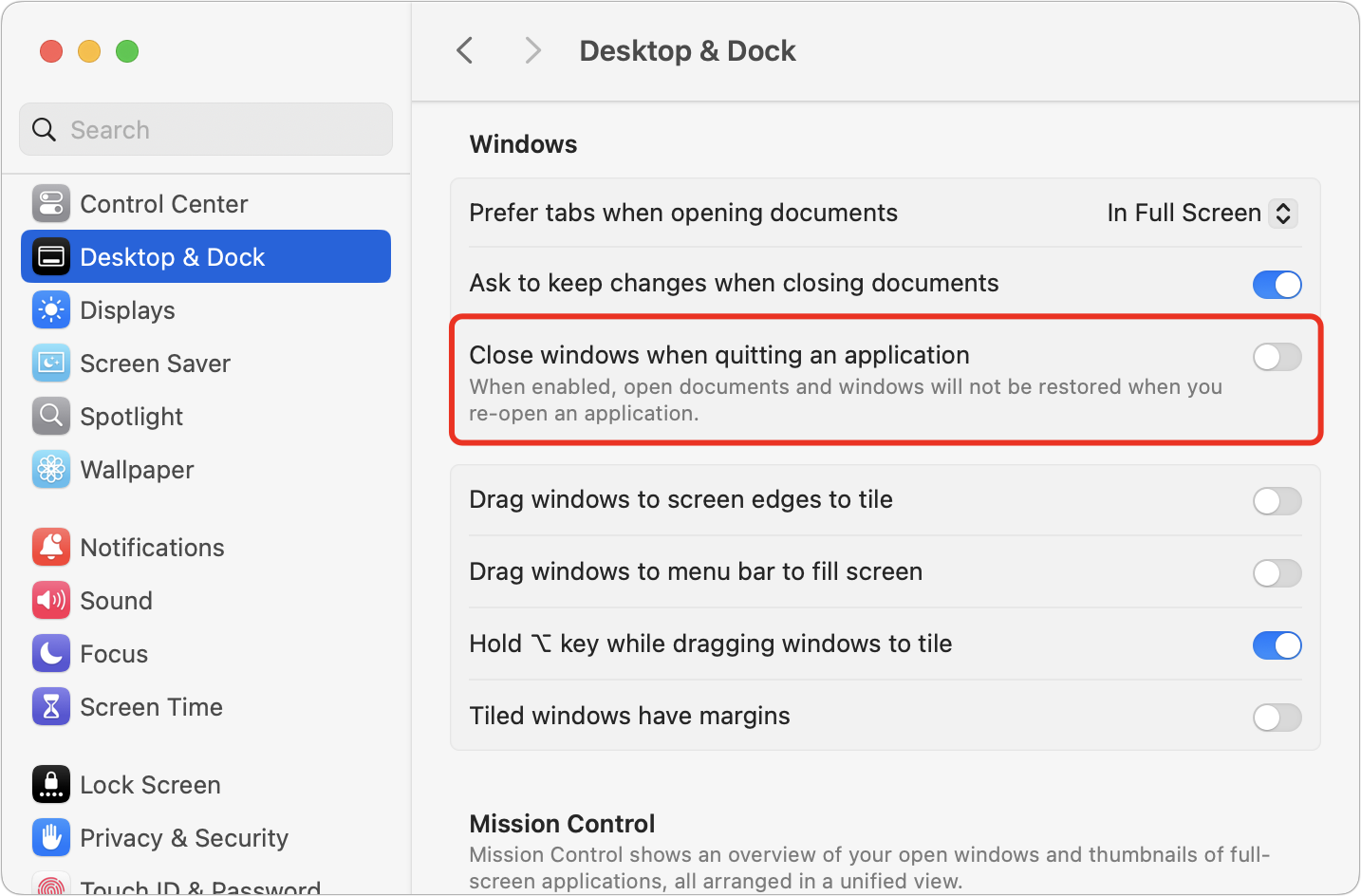
System Settings → Desktop & Dock → (scroll to) Windows → “Close windows when quitting an application.” (Apple Support)
This one is easy to misunderstand because the label is phrased in the negative:
- When “Close windows when quitting an application” is ON, macOS closes an app’s windows as part of quitting. That means there’s nothing for Resume to restore next time you launch the app, so the app tends to open “fresh.” (Apple Support)
- When that setting is OFF, quitting doesn’t discard the app’s window state, so reopening the app later often brings back documents and windows where you left them. (Apple Support)
-
This one switch explains most of the confusion about “why did my documents come back?”
What this looks like in real life
Document-based apps (Pages, Numbers, Preview, etc.)
These apps often have one window per document. With “Close windows…” OFF, quitting, and reopening may restore the same documents you had open. With it ON, the app is more likely to open without restoring those documents (or may open to a start screen, depending on the app).Unsaved documents (the “wait, why didn’t it ask me to save?” moment)
Here’s a big gotcha:- If “Close windows…” is ON, macOS tends to close windows during quit—so you’re more likely to get prompted to save changes before the window closes.
- If “Close windows…” is OFF, macOS may preserve state and reopen those windows later—so you might not get a save prompt at quit, because macOS expects to restore your in-progress work on next launch.
Whether this feels helpful or alarming depends on your workflow, but it’s normal behavior when Resume is enabled.Window-based apps (Mail, Messages, many “single main window” apps)
Apps with a primary “home” window will usually open a window regardless. Where Resume matters is often window placement—which display, which Space, and sometimes which size/position. If you’re constantly dragging Mail back to the “right” monitor after relaunching, this setting is one of the first things to check.When an app doesn’t behave the way you expect
Even with the two main settings configured, a few common exceptions can make it look like macOS is ignoring you:Some apps manage restoration themselves.
Safari is the classic example, with its own “open with…” session settings. Many Electron-based apps (Slack, Discord, Notion, etc.) also have their own ideas about session restore. In those cases, check the app’s own settings first. (MacMost.com)Some apps don’t fully follow Apple’s standard behavior.
A number of third-party apps (including some large suites) can be inconsistent in their support for Resume-style restoration. If one app behaves differently from everything else, it may be the app—not your Mac.Login Items override your “clean slate.”
Even if you restart with “Reopen windows…” unchecked, apps you’ve explicitly set to open at login will still launch. That’s expected—Login Items are basically your “always start these” list.Full-screen apps can appear not to have reopened.
If an app reopens full-screen into its own Space, it may be “there,” just not on the Space you’re currently viewing.Two quick “one-time override” tricks (when you want the opposite behavior just this once)
Sometimes you like Resume generally, but you want a clean launch for one app, one time.- Hold Shift while launching an app to try to prevent a restore during that launch. It doesn’t work with every app, but it’s worth trying. (OS X Daily)
- On some versions of macOS/apps, holding Option can reveal a “Quit and Keep Windows”/variation in the menu (behavior varies by app and macOS version).
A simple way to choose the setup you want
If you want your entire workspace restored after a restart:
Keep “Reopen windows when logging back in” checked when restarting/logging out. (Apple Support)If you want apps to remember documents and window placement when you quit and relaunch them:
Turn OFF “Close windows when quitting an application.” (Apple Support)If you want a clean slate most of the time:
Uncheck “Reopen windows when logging back in” during restart/log out, and turn ON “Close windows when quitting an application.” (Apple Support)And if windows don’t appear the way you expect, these are the first two settings to verify—before you assume something is “broken.”
________________________________________________________
If you want help standardizing these behaviors across multiple Macs (or troubleshooting one stubborn app that won’t follow the rules), The Mac Guys+ can help you pick the right settings for your workflow and make them consistent across your systems.
Contact The MacGuys+ at 763-331-6227