
Apple provides several easy options for sharing Wi-Fi passwords. If someone nearby tries to join a Wi-Fi network on an iPhone, iPad, or Mac, you may receive a prompt to share the password automatically. Both users must be signed in to iCloud, have Bluetooth and Wi-Fi enabled, and be saved in each other's Contacts. Alternatively, you can share access without revealing the password by generating a QR code in the Passwords app. Open Wi-Fi, select the network, and display the QR code for others to scan.
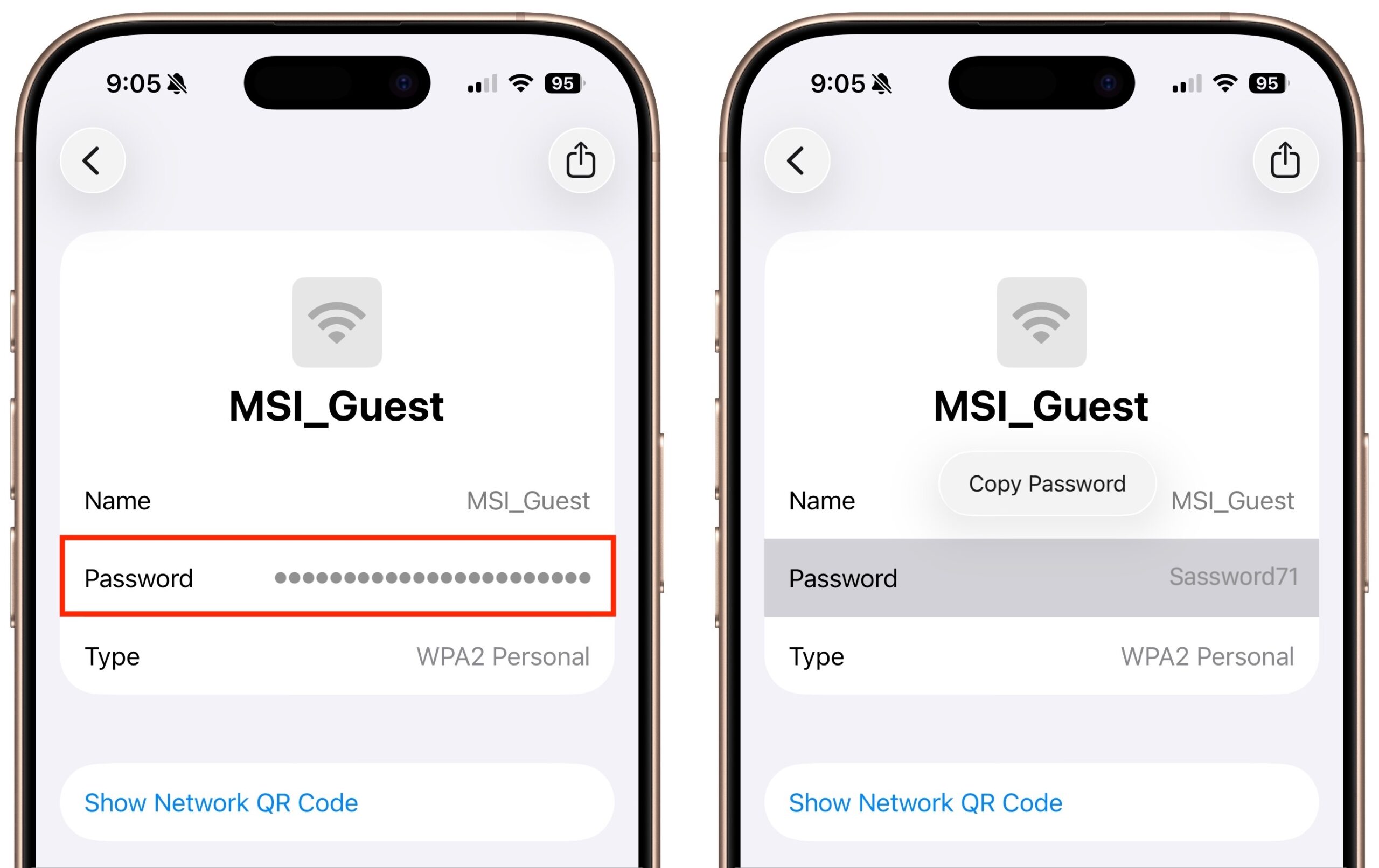
If you need to send the password directly by email or text, you can look it up on your device. On an iPhone or iPad, open Passwords, tap Wi-Fi, select the network, tap the obscured password, and choose Copy Password. On a Mac, open Passwords, select Wi-Fi, hover over the obscured password, click to reveal it, then click again to copy. If you share the password in a message, only send it to someone you trust and consider changing it afterward if it was for a guest or temporary use.
(Featured image by iStock.com/jpkirakun)
Social Media: Apple makes it easy to share Wi-Fi passwords without requiring anyone to type them. We explain how you can do this nearly automatically, with a QR code, or by looking up the password and copying it so you can paste it into an email message or text.