
macOS Tahoe Gives You More Control Over MacBook Battery Charging
Apple has introduced two new battery features in macOS 26.4 Tahoe: the Slow Charger indicator and the Charge Limit setting. Both help MacBook users maintain long-term battery health. Understanding these features makes them easier to manage.
Why Apple Limits Charging
Lithium-ion batteries degrade over time due to their “chemical age,” which is affected by charging habits and heat. Batteries kept at full charge or exposed to excess heat age faster and hold less charge. For MacBooks often plugged in at a desk, remaining at 100% charge for extended periods accelerates battery wear.
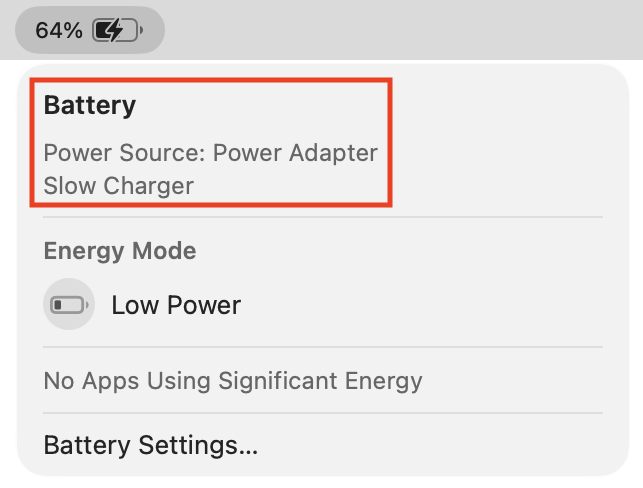
Apple has addressed this issue over time. Optimized Battery Charging uses on-device machine learning to learn your routine and delays charging past 80% until just before you typically unplug. When your Mac holds at 80%, you’ll see “Charging On Hold” in the battery status menu. macOS 26.4 expands on this with more direct controls.
The New Charge Limit Feature
While Optimized Battery Charging predicts your schedule, Charge Limit allows you to set a specific maximum charge level between 80% and 100%. Your Mac charges up to that limit and stops. If the battery drops more than 5% while plugged in, charging resumes until it reaches the set limit.
To set a charge limit, open System Settings > Battery, click the info icon next to Charging, and select your preferred limit. When active, the battery menu displays “Charged to X% Limit.”
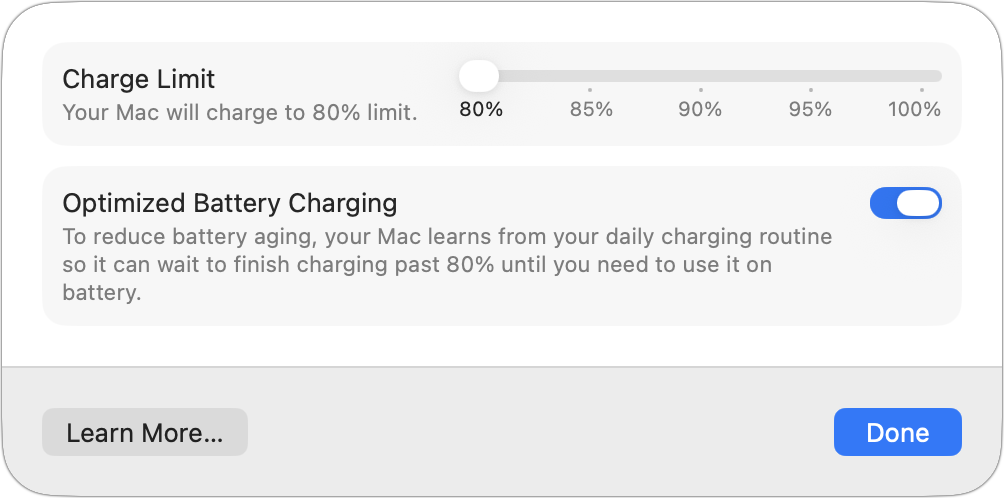
This feature is especially useful if your MacBook remains at your desk. Setting an 80% limit reduces battery wear while maintaining enough charge for brief periods away from power.
When You Need a Full Charge
You can override both Optimized Battery Charging and Charge Limit when you need maximum battery life, such as before a long trip or an unpredictable day away from power.
- For immediate charging, click the battery icon in the menu bar and select “Charge to Full Now.”
- To disable limits until tomorrow, go to System Settings > Battery, click the info icon next to Charging, turn off Optimized Battery Charging, and select “Turn Off Until Tomorrow.” Set Charge Limit to 100%.
- To disable limits permanently, follow the same steps but select “Turn Off” in the warning dialog. Set Charge Limit to 100%. Note that this will reduce your battery’s overall lifespan.
Similar settings are available for iPhone and Apple Watch.
On iPhone, go to Settings > Battery > Charging and turn off Optimized Battery Charging. On Apple Watch, this option is under Settings > Battery > Battery Health.
The Slow Charger Warning
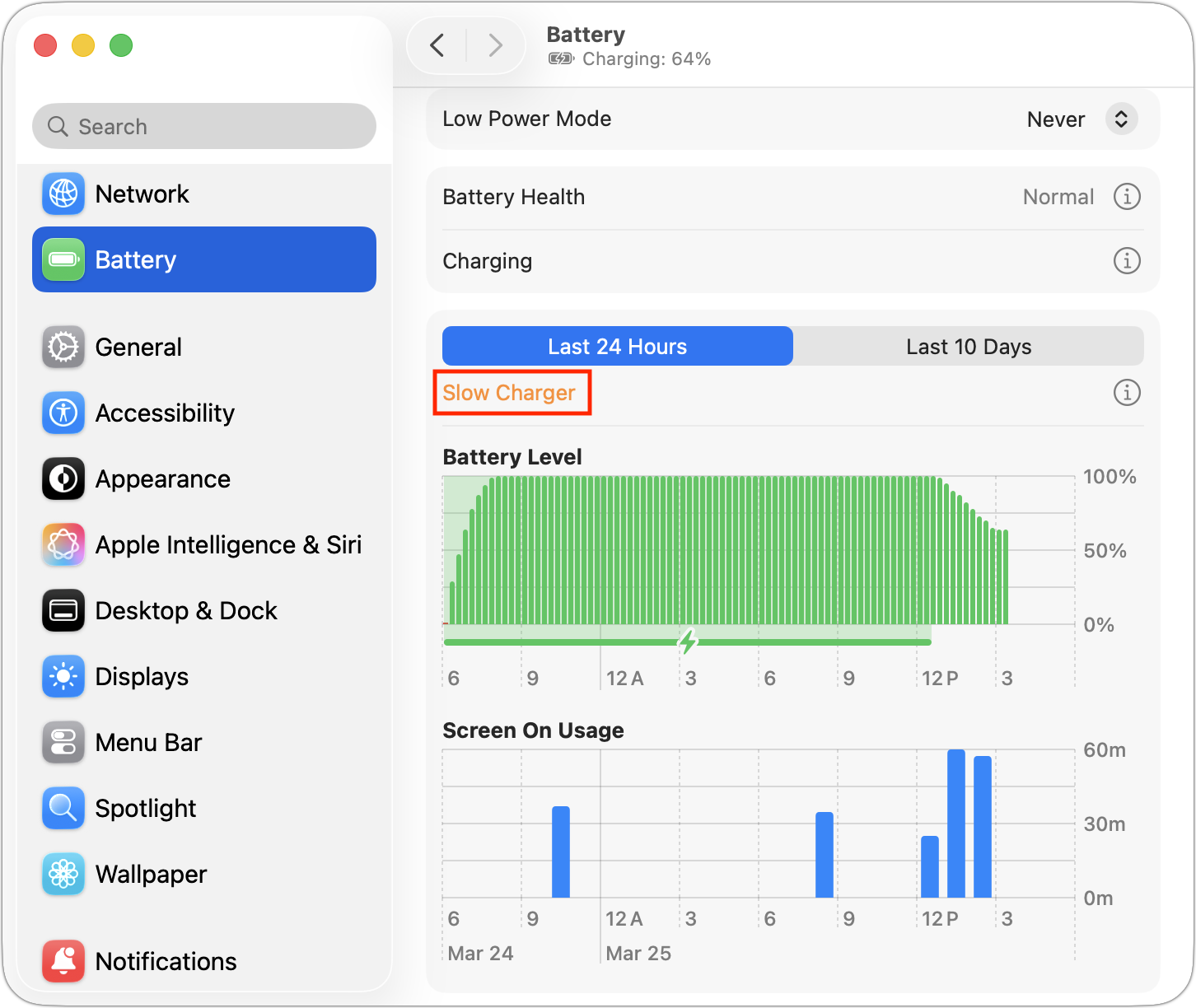
You can check your current power adapter’s wattage by reading the fine print on the charger itself, or by opening the System Information app and checking the AC Charger section in the Power screen. It’s safe to use an adapter with a higher wattage than required, but don’t go below the wattage of Apple’s included adapters.
For optimal charging, use an adapter that delivers at least the minimum wattage recommended for your Mac:
- MacBook Neo: 20 watts (no fast charging available)
- 13-inch MacBook Air: 30 or 35 watts standard, 67 watts for fast charging
- 15-inch MacBook Air: 35 watts standard, 70 watts for fast charging
- 14-inch MacBook Pro: 70 watts standard (or 96 watts for M4 Pro and M4 Max chips); 96 watts for fast charging
- 16-inch MacBook Pro: 140 watts for both standard and fast charging
Using your iPhone’s 20W charger with a MacBook Pro might technically work, but you’ll now be warned that it’s not delivering adequate power.
Finding the Right Balance
For most users, keeping Optimized Battery Charging enabled is recommended. It learns your usage patterns and charges to full when needed. The new Charge Limit feature offers more direct control, which is useful if your MacBook remains at your desk.
If you frequently override these features, your schedule may be too unpredictable for the algorithm. In this case, consider disabling Optimized Battery Charging or setting a higher Charge Limit. Be aware that maintaining a 100% charge more often will reduce battery lifespan, so weigh this trade-off based on how long you plan to keep your device.
(Featured image by iStock.com/shirophoto)
_______________________________________________
Need help? Contact The MacGuys+ at 763-331-6227
Top-notch IT support for Mac-based businesses in Minneapolis, St. Paul, Twin Cities Metro, Western WI, and beyond. Enjoy seamless nationwide co-managed Mac IT support for a flexible work-anywhere experience.