
The Backup Gap: What Cloud Storage Misses
Many businesses use iCloud Drive, Dropbox, Google Drive, Box, or OneDrive to store important files. While these platforms are managed by major companies with robust IT infrastructure, they do not provide true backups of your data.
Cloud storage is helpful in some recovery situations; however, it does not replace proper backups. Understanding this distinction helps you make informed decisions about your data protection strategy.
To clarify what sets backups apart, consider the following:
Cloud storage allows saving a file and syncing it across all connected devices. Only one version exists, accessible from multiple locations.
A true backup operates independently of your workflow. For example, Time Machine runs on its own schedule, allowing you to restore earlier versions if a file is corrupted, changed, or deleted.
What Cloud Storage Won’t Protect Against
Cloud storage does not fully protect against the following scenarios:
Accidental deletion: When files are deleted, the change syncs everywhere. If the trash is emptied, recovery is often impossible.
Accidental changes: Corrupted apps or unintended edits sync immediately, making recovery difficult or impossible.
Account compromise: Weak or reused passwords can allow attackers to access, delete, or encrypt your files.
Account problems: Billing issues, forgotten passwords, or terms-of-service disputes can result in complete loss of account access.
Ransomware: If malware encrypts your files, the encrypted versions sync to the cloud, making them unrecoverable.
How to Back Up Cloud Storage Files
To protect your data, back up cloud storage files as you would any other files. Consider the following:
First, ensure your backup includes local copies of files stored in the cloud. Time Machine backs up your user folder by default, but other backup apps may exclude cloud storage folders.
Second, some cloud services store files only online to save disk space, displaying placeholders instead of actual files. These files are not backed up by Time Machine or most backup apps. Carbon Copy Cloner can download, back up, and then remove local copies as needed.
To ensure files are always stored locally, most major cloud services provide a setting for this purpose:
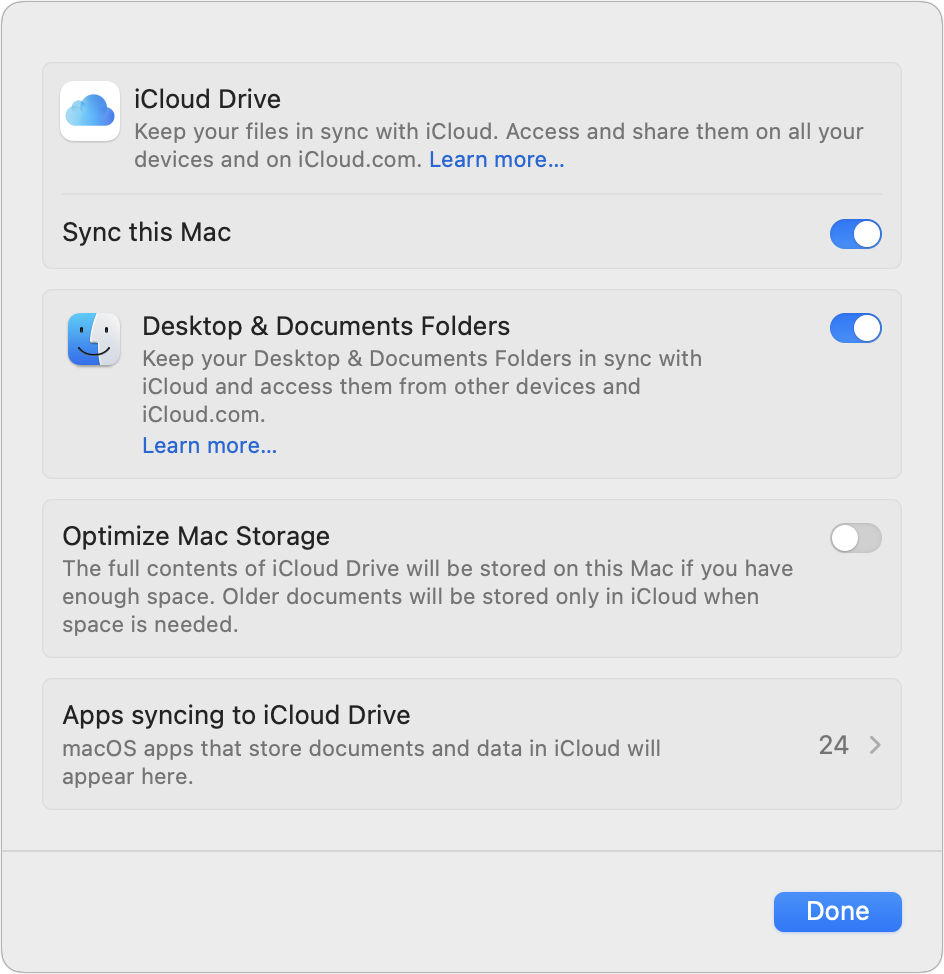
- iCloud Drive: Turn off Optimize Mac Storage in System Settings > Your Name > iCloud > iCloud Drive.
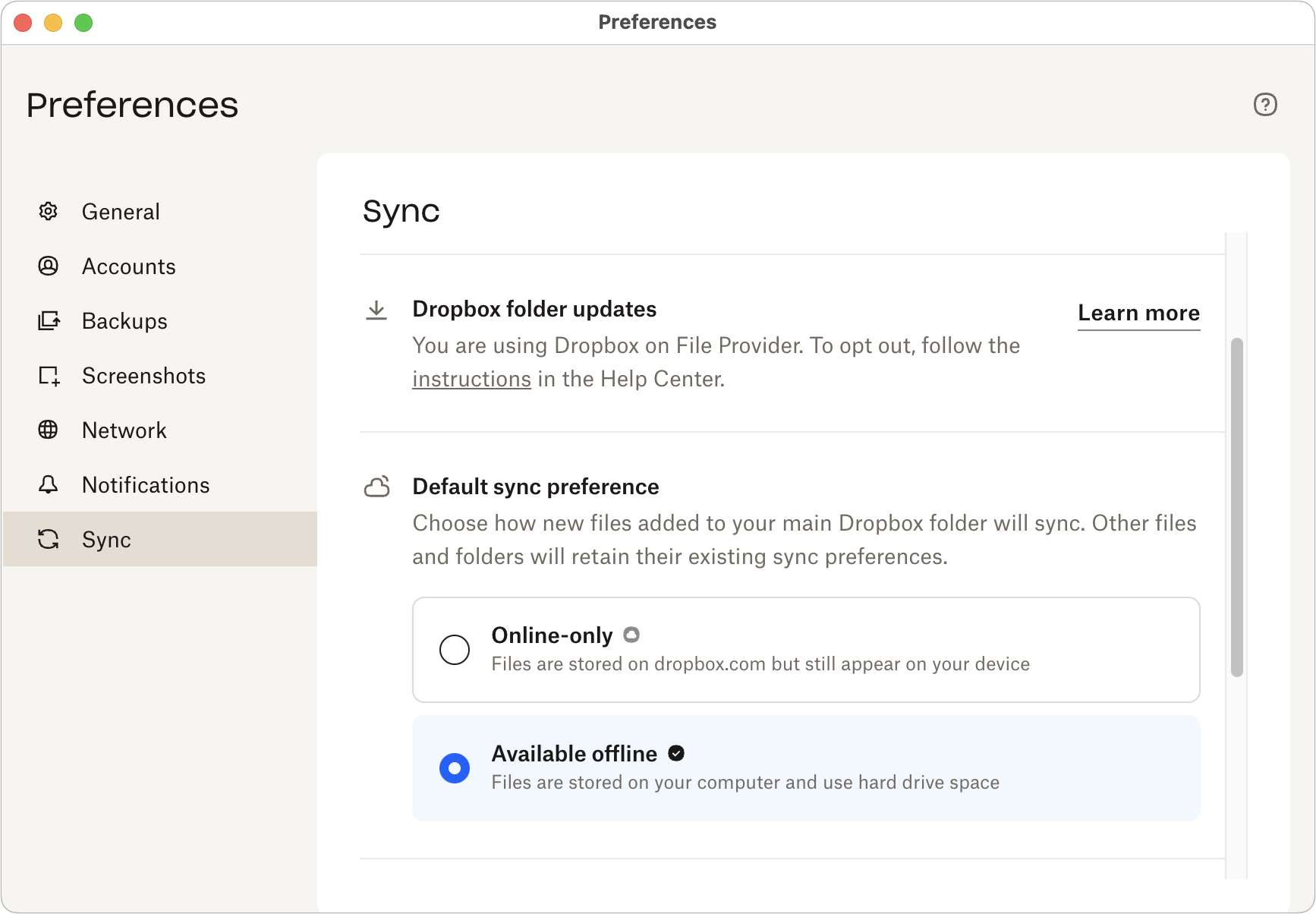
- Dropbox: In Account >Preferences > Sync, set the Default Sync Preference to Available Offline. Note this applies only to new files.
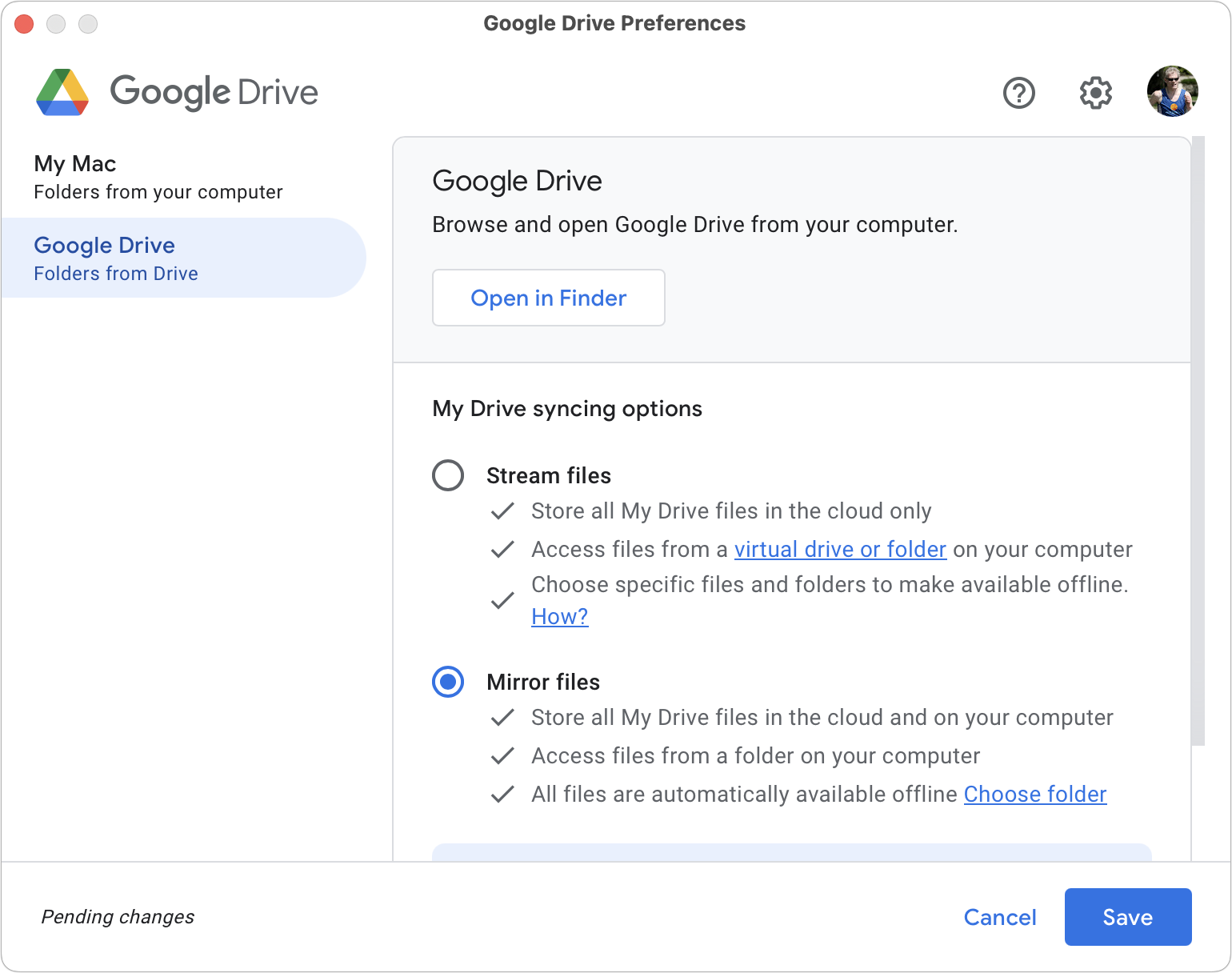
- Google Drive: In Preferences, select Mirror Files under My Drive syncing options.
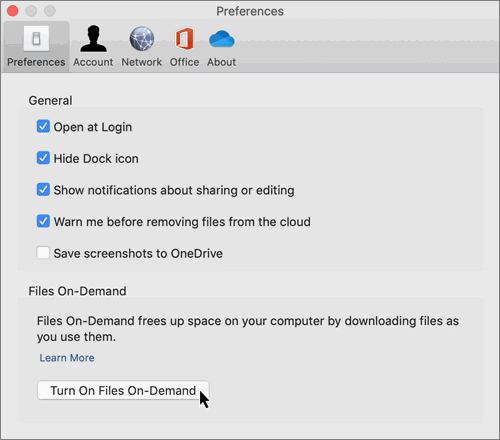
- OneDrive: In Preferences, turn off Files On-Demand.
In addition to standard backup and sync features, many wonder about version history. Does it provide sufficient protection for your files?
Most cloud storage services offer version history, allowing you to restore previous versions of files. While this offers some protection, it has two key limitations.
Version history is usually limited to 30-180 days, depending on your plan. If you do not identify an issue within that period, recovery is not possible. Restoring many files from version history is also time-consuming and less practical than using a proper backup.
The Bottom Line
Cloud storage is valuable for disaster recovery. If a device is lost, stolen, or damaged, files remain accessible from another device. However, cloud storage alone does not protect against accidental deletion, file corruption, ransomware, or account issues. These risks require separate, independent backups of all files, including those in the cloud.
A reliable backup strategy follows the 3-2-1 rule: keep three copies of your data, on two types of media, with one copy offsite. Cloud storage can serve as the off-site copy, but it should complement local backups, not replace them.
(Featured image by iStock.com/ismagilov)
_______________________________________________
Need help? Contact The MacGuys+ at 763-331-6227
We offer a free 15 min consultation discovery call
Top-notch IT support f in Minneapolis, St. Paul, Twin Cities Metro, Western WI, and beyond.
We support small businesses that run on Macs, iPhones/iPads, and Apple services. Our focus is practical reliability: setup, troubleshooting, maintenance, security basics, and workflow improvements. Enjoy seamless nationwide co-managed Mac IT support for a flexible work-anywhere experience.