

Taking Control of Your Notifications with Apple Focus
Many people find their phones both essential and overwhelming. Calls, messages, app alerts, and calendar reminders often demand attention at inconvenient times, such as during meetings, late nights, or important personal moments.
Apple’s Focus feature addresses this challenge. Unlike the basic Do Not Disturb switch it replaced in 2021, Focus offers a more advanced system. When configured carefully, it works effectively. However, incorrect settings may cause you to miss important calls without realizing it.
The following explains how Focus works and how to set it up to suit your needs.
What Focus Actually Does
Focus allows you to create customized notification settings for different times of day. Instead of a single on/off switch, you can set up distinct modes, each with specific rules for who and what can contact you.
When a Focus is activated, it can silence notifications from selected people and apps while allowing priority contacts through.
It can also:
- change your Lock Screen
- hide specific Home Screen pages
- send automatic replies to indicate you are unavailable
- Filter content in Mail, Calendar, Messages, and Safari
- Automatically sync these settings across your iPhone, iPad, and Mac.
The cross-device sync is convenient, but activating a Focus on your Mac will also silence notifications on your iPhone. Keep this in mind when configuring your settings.
The Built-In Modes
Apple includes three Focus modes that cover the most common situations.
Do Not Disturb is a general-purpose option, suitable for appointments, workouts, movies, or any time you need to avoid interruptions. You can activate it manually from Control Center for a set duration or until you leave a location, making it easy to use without a fixed schedule.
Sleep integrates with the schedule you set in Settings or the Health app. When active, it adjusts your Lock Screen, Home Screen, and Apple Watch face to minimize distractions, helping you wind down and sleep without interruptions from your phone.
Driving activates automatically when your iPhone connects to a car’s Bluetooth or detects movement in a vehicle. It silences most notifications and can send automatic replies to incoming texts. If you are often a passenger and wish to use your phone, connecting via Bluetooth instead of motion detection provides greater control.
Building Your Own Focus Modes
In addition to the default modes, you can create Focus modes tailored to your routines. Apple offers suggestions such as Gaming, Mindfulness, Personal, Reading, and Work, but the main benefit is customizing modes to fit your schedule.
For example, you can set up separate Focus modes for a Tuesday morning class, Thursday afternoon client calls, or Friday morning deep work sessions, each with its own rules.
How to create a Focus mode: go to Settings > Focus on iPhone or iPad, or System Settings > Focus on Mac. You can then configure four main areas.
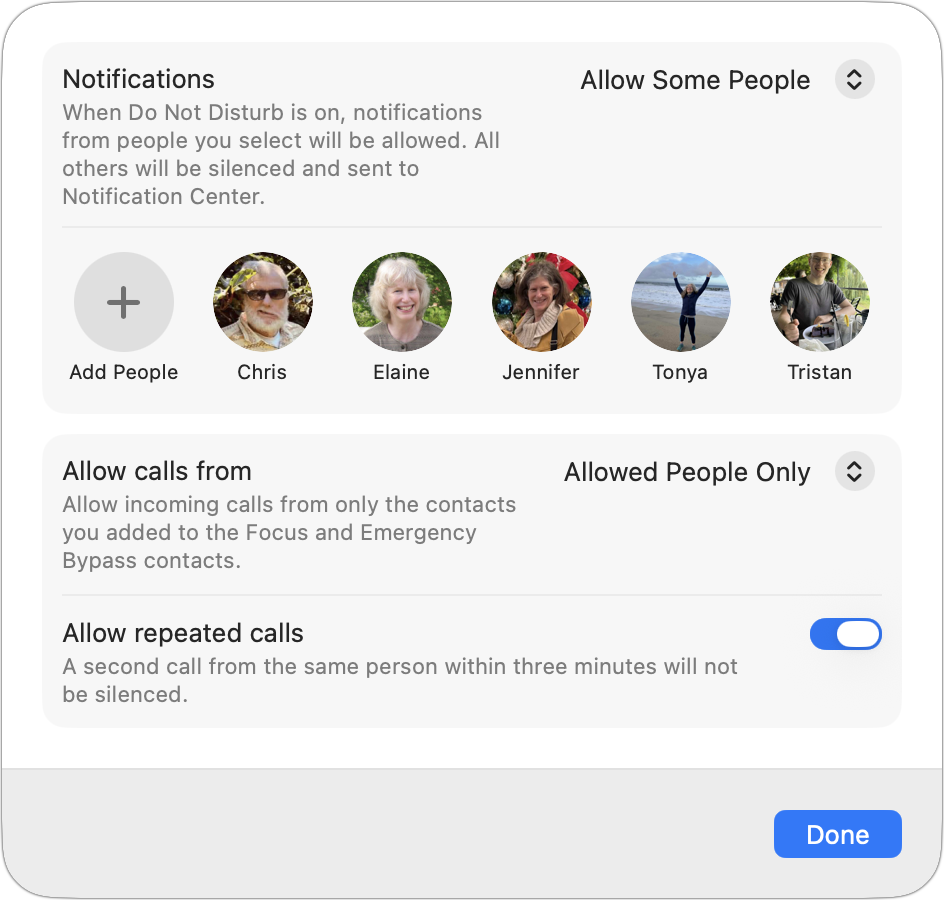
- Choose which people are allowed through during Focus: Allowed people and apps let you control who and what can contact you during a Focus. You can permit calls from specific groups, such as Favorites or Contacts, and enable Time Sensitive Notifications to ensure urgent alerts are delivered, even from otherwise silenced apps.
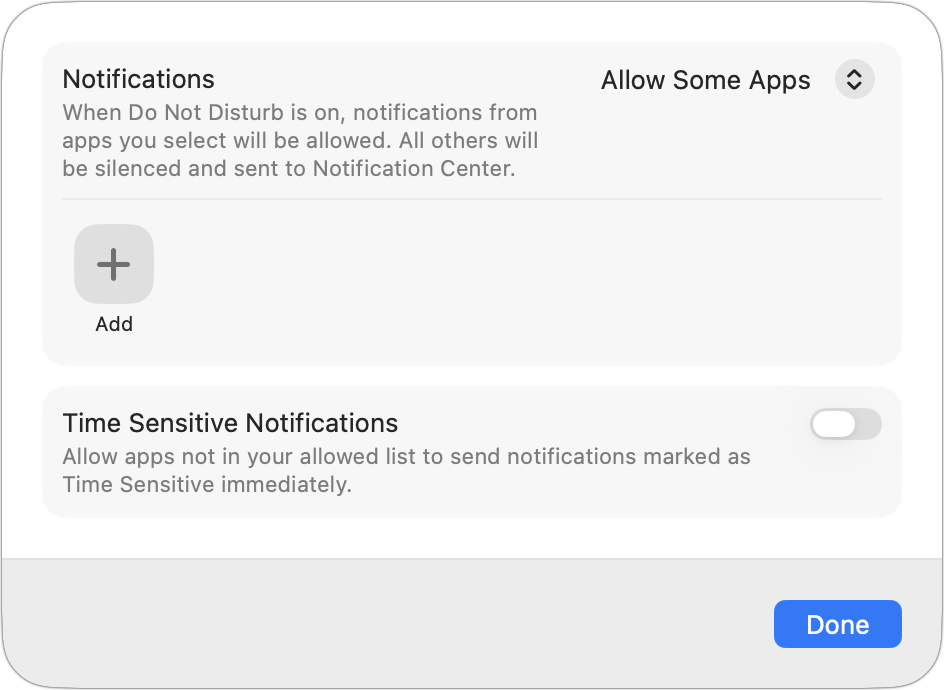
- Choose allowed apps and notifications: You can also able enable Time Sensitive Notifications to ensure urgent alerts are delivered, even from otherwise silenced apps.
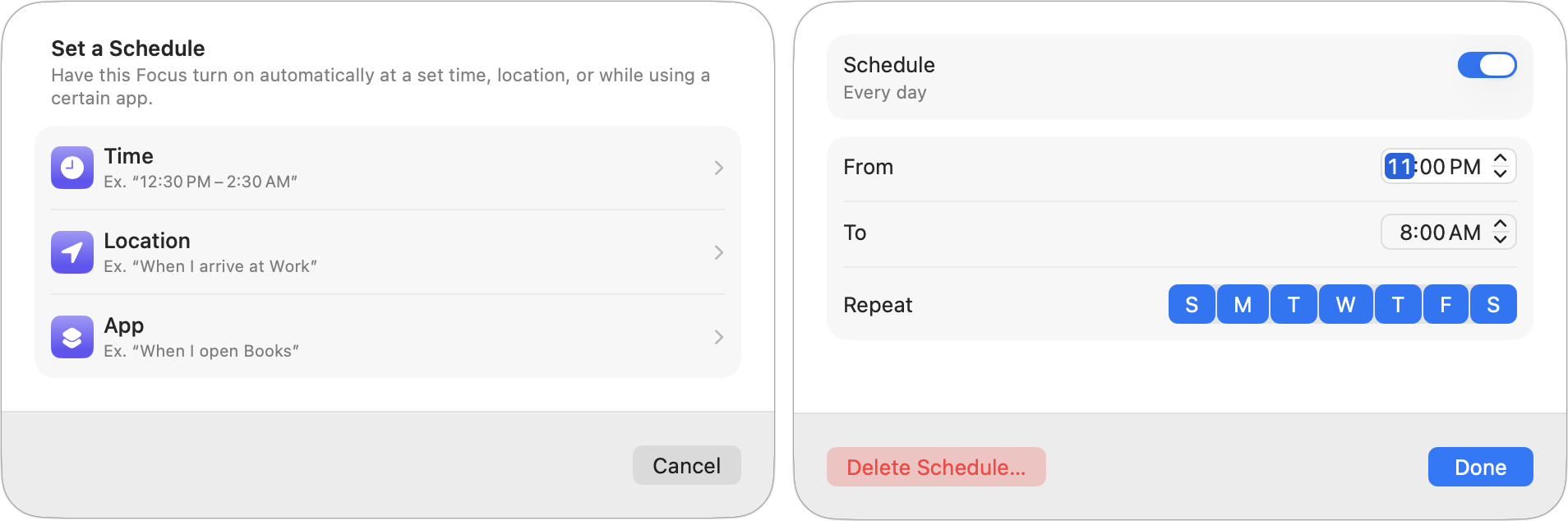
- Setting Focus schedules: Schedules and triggers allow you to automate when a Focus activates. You can set it to turn on at specific times, upon arriving at or leaving a location, or when opening a particular app. The app-based trigger is especially useful for presentations or live demonstrations.
- Add Focus Filters: Focus Filters let you customize how individual apps behave during a Focus. For example, during a work Focus, you can display only work email accounts in Mail and a specific tab group in Safari, keeping personal content hidden without removing it.
Intelligent Breakthrough & Silencing: If you have Apple Intelligence enabled, this option “intelligently” allows priority notifications to interrupt you and silences others. It doesn’t override your explicit settings for allowing or silencing notifications.
-
Where Focus Gets Complicated
Focus is valuable, but its complexity can lead to unpredictable and difficult-to-diagnose issues. Understanding these pitfalls can help you avoid unexpected problems.
Unexpected activation is the most common issue. Triggers based on time, location, or app usage can enable a Focus without your awareness, causing you to miss notifications. This risk increases when your routine changes. For example, a workout Focus set for noon will still activate even if you are at a conference or handling a family matter.
Cross-device confusion is common. By default, Focus syncs across all Apple devices, so activating Sleep Focus on your iPhone can also silence your Mac. If you need different settings on each device, turn off Share Across Devices and configure them separately.
AI-driven features increase unpredictability. Smart Activation and Intelligent Breakthrough use machine learning to decide when Focus activates and which notifications are allowed. These features can make the system harder to predict. Consid leaving them off until you are comfortable with your manual settings.
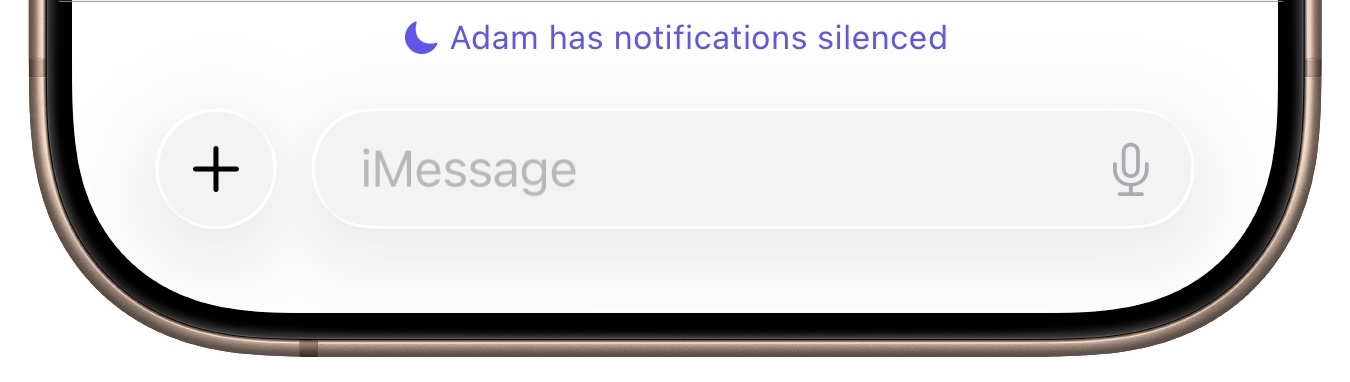
The silenced indicator can also cause confusion. When a Focus is active, anyone who texts you in Messages sees that your notifications are silenced. This can be helpful, but may confuse contacts if Focus activates unexpectedly.er
- The forgotten Focus: Forgotten Focus modes are easy to miss. A Focus triggered by an app or location may remain active longer than intended. For example, if you leave while Mail is open on your Mac and the computer stays awake, a Focus Filter tied to Mail could hide accounts or data for hours or even an entire weekend.
To benefit from Focus without confusion, keep your setup simple and intentional.
- Start with the three built-in modes: Do Not Disturb, Sleep, and Driving. These cover most needs and are predictable. Delete any custom Focus modes you are not using.
- Use triggers sparingly. Adding more schedules, locations, or app-based triggers makes Focus harder to predict. Only add triggers when the automation provides clear value.
- Allow more calls than you think necessary. Unexpected calls from known contacts are rare but often important. Allow calls from Favorites or a close contacts group, and enable Allow Repeated Calls so someone can reach you if they call twice within three minutes.
- Check Focus status when troubleshooting. If notifications are missing, first verify whether a Focus is unexpectedly active. The quickest way is through Control Center.
- Review Share Across Devices. If something seems off, review Share Across Devices. Unexpected behavior across your iPhone, iPad, and Mac is often due to sync issues. Turning off Share Across Devices and configuring each device separately improves predictability.
- Focus is most effective when paired with good notification practices. Limit notifications to essential apps to reduce the need for Focus.
Focus is a powerful tool for managing the constant stream of notifications from our devices, but it requires careful configuration. When in doubt, keep it simple: Sleep to protect your sleeping hours, Driving to block distractions in the car, and Do Not Disturb for ad hoc appointments and performances may be all you need.
(Featured image by iStock.com/DragonImages)
_______________________________________________
Need help? Contact The MacGuys+ at 763-331-6227
Top-notch IT support for Mac-based businesses in Minneapolis, St. Paul, Twin Cities Metro, Western WI, and beyond. Enjoy seamless nationwide co-managed Mac IT support for a flexible work-anywhere experience.